 TELO
How to Sync Apple Health Data to Telo
Choose what Telo Health can read from Apple Health, check your first sync, and troubleshoot missing HRV, sleep, or workout records.
Apple Watch HRV not showing? Jump to the checks.
1. Give Telo access to Apple Health
Open Telo on your iPhone and choose which data to share when prompted. To change access later, open Apple’s Health app, tap your profile, then choose Privacy → Apps → Telo and check the categories you want to share. Apple’s Health permissions guide
2. Check your first sync
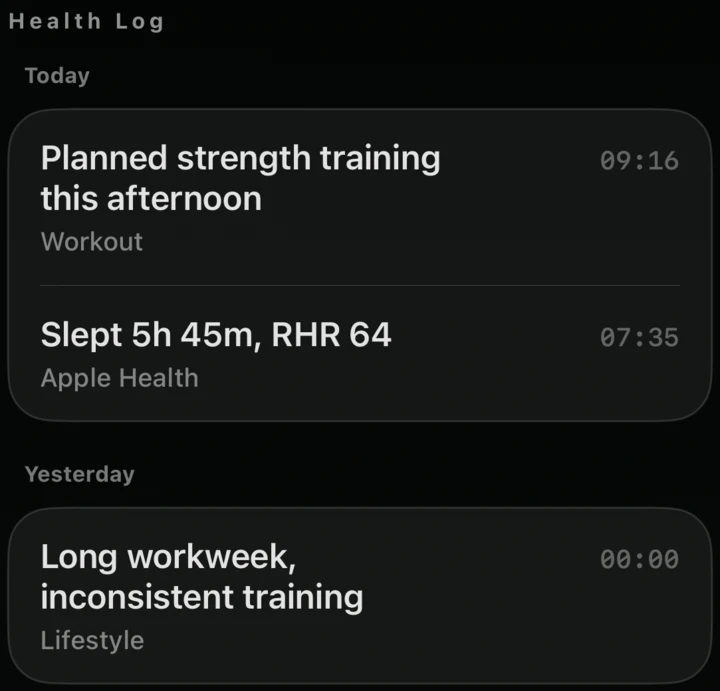
Return to the Telo Health dashboard to see readiness, sleep, recovery, and load. Open Health Log to check for synced sleep and workouts. If you just changed permissions, reopen Telo before checking again.
3. Troubleshoot a missing record
- Open the relevant category in Apple Health and check the record’s date and data source.
- Check that Telo has permission to read that category. If you use an Apple Watch, first check that the record appears in Apple Health on your iPhone.
- Return to Telo and check the same day. If the record is still missing, contact Telo support.
What to check if Apple Watch HRV is not showing
- Apple Health has no HRV for that day. In Health on your iPhone, search for Heart Rate Variability. Use Show All Data to check the date and Data Sources & Access to see which devices or apps have written data. If the date is missing, check that your watch is paired and whether other watch readings are reaching Health. Apple’s guide to Health data sources.
- Apple Health has HRV, but Telo doesn’t show it. In Health, open your profile and go to Privacy → Apps → Telo. Check that Telo can read Heart Rate Variability, reopen Telo, and look at the recovery summary for the same date. If the values differ, check how Telo calculates overnight HRV. If the record is still missing, tell Telo Support the date, data source, and Telo version.
- Telo shows HRV, but your AI assistant can’t find it. Check that the assistant is using your active Telo connection. Try again with the exact date, time zone, and metric.