 TELO
How to Read Your Apple Watch Recovery Data and Telo Score
Learn how Telo Health calculates its 0–100 readiness score from Apple Health data, what the four score bands mean, and what happens when data is missing.
What Apple Health data Telo uses
| Metric | What it uses |
|---|---|
| Readiness | Combines recovery and sleep, with a deduction that grows as load rises. |
| Recovery | Compares heart rate variability (HRV) and resting heart rate with your recent baseline when available. |
| Sleep | Uses total sleep time, deep sleep, REM sleep, and time awake. |
| Load | Uses active energy and exercise time. When body weight is available, Telo evaluates active energy relative to body weight. |
How to read the score
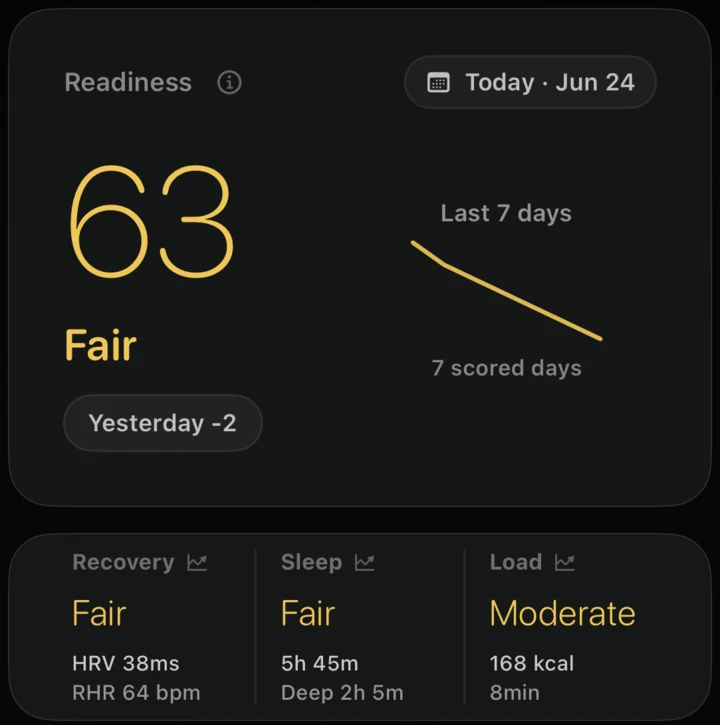
Telo labels scores of 90–100 Optimal, 75–89 Good, 60–74 Fair, and 0–59 Pay Attention. In the screenshot, 63 is Fair. Compare the day with your recent trend, then check the recovery, sleep, and load cards to see what moved.
When reading the trend, check how many of the last seven days have a score. Use the daily score to review changes in sleep and activity, and consider how you feel when planning a workout.
Worked example: trace a readiness score of 63
Both screenshots use the same June 24 demo. Start with the Apple Health readings, find the matching day in Telo Health, then open its Health Log.
- Check Apple Health. The overnight record shows 5 hr 45 min asleep, including 2 hr 5 min of deep sleep. The synced recovery summary shows 38 ms HRV and a resting heart rate of 64 bpm. Keep the wake date and the source consistent when comparing the two apps.
- Read the Telo dashboard. June 24 shows 63 · Fair and a decrease of 2 points from the previous day. Recovery and Sleep are both Fair. Load is Moderate, with 168 kcal of active energy and 8 minutes of exercise.
- Read the log in time order. The 07:35 entry repeats the synced sleep duration and resting heart rate. The 09:16 entry is a plan to strength train that afternoon. The previous day’s note mentions a long workweek. The plan and the note add context alongside the synced activity totals.
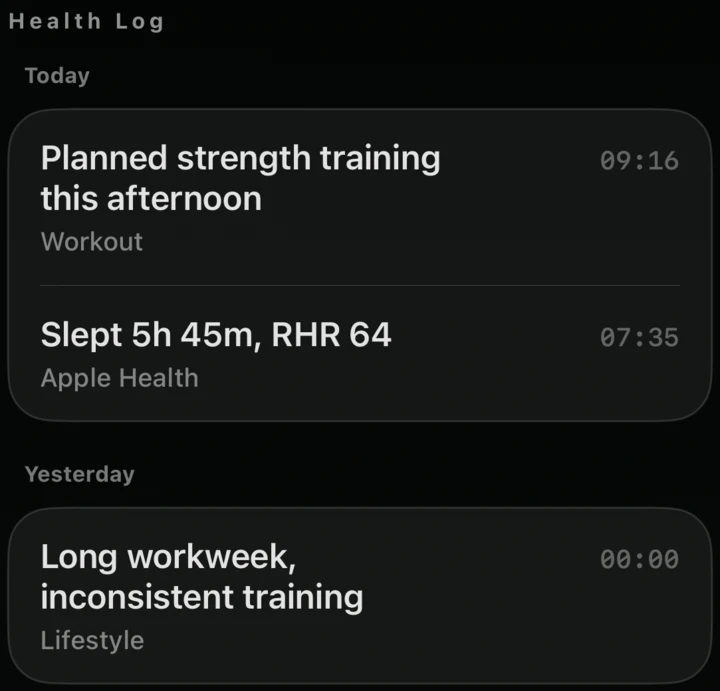
The demo log describes a usual night of about 7 hours and a resting heart rate of 58–60 bpm. Use that context to decide what to inspect across the next few days. A single day shows which readings occurred together.
How Telo calculates readiness
Telo starts with 60% of the recovery score plus 40% of the sleep score, then subtracts up to 15 points based on load. The deduction rises faster at higher load values. A load score of 50 subtracts about 1.9 points before rounding. You can also find the scoring breakdown in Telo under Settings.
Why is my HRV different in Telo and Apple Health?
Apple Health stores individual HRV readings with timestamps. Telo identifies your main sleep session and uses the median of the HRV readings from that session in the recovery summary. The source is HealthKit’s SDNN samples, measured in milliseconds.
Example Your main sleep runs from 11 p.m. to 6 a.m., with readings of 35, 42, and 52 ms. Telo uses 42 ms, the middle value. A 68 ms reading at 2 p.m. still appears in Apple Health, outside the sleep window Telo uses for this calculation.
To check your own numbers, confirm the wake date in Telo. In Health on your iPhone, open Heart Rate Variability → Show All Data and match the sample timestamps to your main sleep session. If Telo can’t identify the session or find HRV readings during it, the HRV field may be blank. Troubleshoot missing HRV.
Why a score may be unavailable
The dashboard shows readiness as unavailable when Telo cannot calculate recovery or sleep. Recovery can use either HRV or resting heart rate if only one is present. The sleep score needs total sleep time, deep and REM sleep information, and time awake. If load alone is unavailable, Telo can still calculate readiness without a load deduction. Check the relevant date in Apple Health and review Telo’s sync permissions.
If HRV is missing, trace the record from Apple Health to Telo.
Telo readiness and Apple’s Readiness app
Telo displays a 0–100 score on its dashboard using the method above. On Apple Watch Series 12 and Ultra 4, Apple provides its own 0–10 score for eligible users in the Readiness app and in Fitness on iPhone. Each score uses its own method. See Apple’s Readiness guide.