 TELO
Connect Apple Health to Codex with Telo
Install the Telo plugin in Codex, authorize access from your iPhone, and query Apple Health sleep and workout records synced to Telo Health.
1. Install the Telo plugin
Start by syncing Apple Health data to Telo on your iPhone. Copy the instruction below and send it in a new Codex chat. After installation, confirm that Telo appears under BlynkAI in Plugins. Its plugin ID is telo@blynkai.
Install telo@blynkai in Codex from https://telo.blynkai.app and open Telo’s OAuth authorization page.
2. Authorize access in your browser
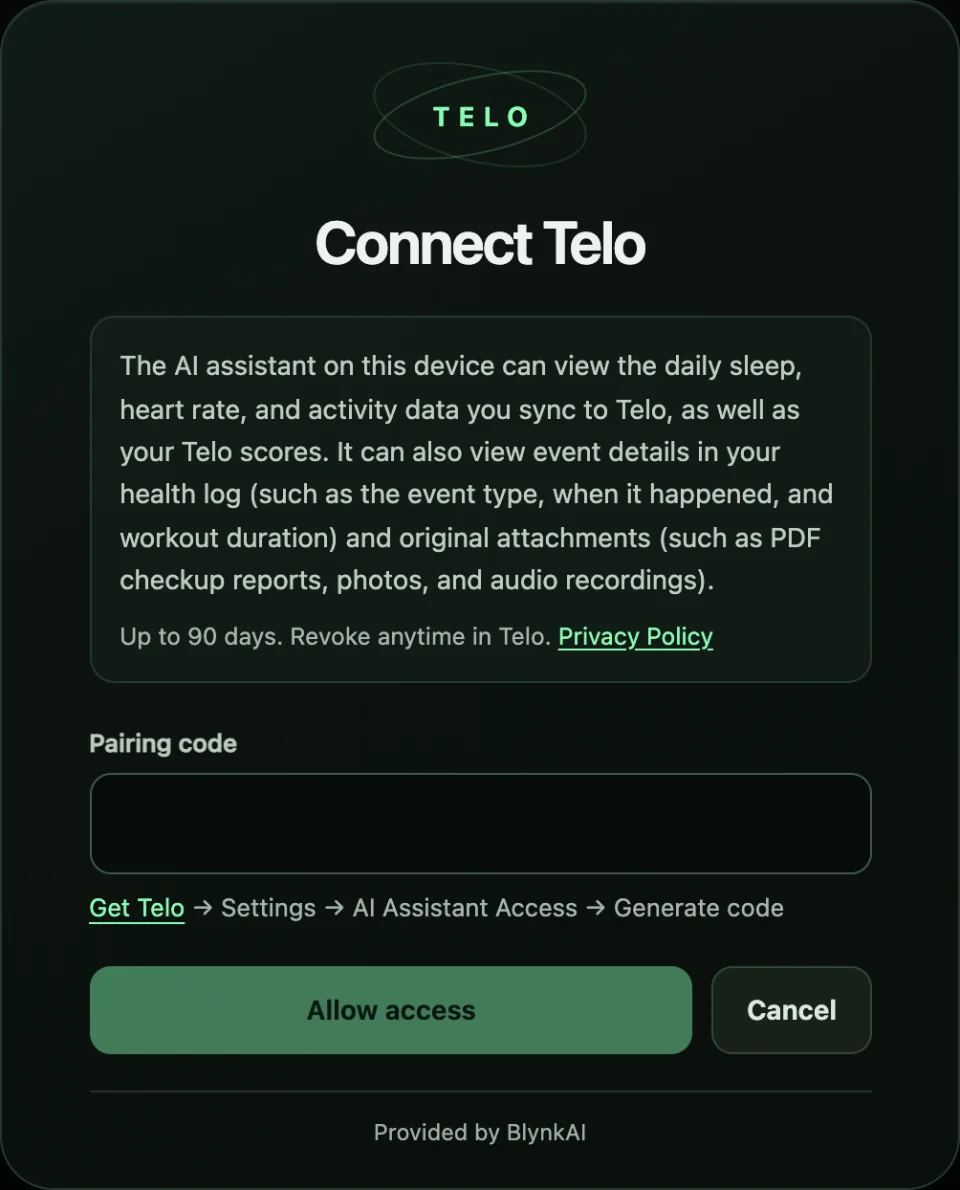
Open the Telo OAuth page that Codex starts. Follow the page’s instructions to generate a pairing code in Telo → Settings → AI Assistant Access on your iPhone. Enter it on the authorization page, review the data access, and choose Allow access.
3. Ask Codex for a record
Return to Codex. In a new chat, type @ and select Telo by BlynkAI, then send a question. Check the date and duration against a record you can see in the Telo Health dashboard or Health Log.
List my recorded sleep duration and workouts for the last three completed days. Use my local dates and mark days with no synced record.
Fix installation, pairing, or missing data
- Telo is missing: Check Plugins for the BlynkAI listing. Refresh the plugin list and open a new chat before trying the mention again.
- The pairing code is invalid or expired: Generate a new code in Telo and enter it on the current authorization page. If you closed the page, ask Codex to start Telo’s OAuth flow again.
- Connection works but a record is missing: Check the same date in Telo, then check Apple Health permissions and sync. Use the same time zone for records near midnight.
To stop future reads, revoke the connection under Telo → Settings → AI Assistant Access. See what Telo Health can share and how access works.