 TELO
Connect Apple Health to Claude Desktop with Telo
Install the Telo plugin in Claude Desktop and pair your iPhone to ask about the Apple Health data you’ve synced to Telo Health.
Before you start, install Telo on your iPhone and check that the data you want to query has synced. Upload the ZIP on a computer running Claude Desktop.
1. Add the Telo plugin
Start by sending the instruction to Claude. Use the steps below if you need to upload the plugin yourself.
Install Telo in Claude Desktop from https://telo.blynkai.app and open Telo’s OAuth authorization page.
Upload the plugin in Claude Desktop
- Download the ZIP and upload it in Claude Desktop via Customize → Plugins → Add → Upload plugin.
- Open Telo under Your plugins and choose Finish setup → Add… → Continue.
- Select Sign in now → Register automatically → Add → Connect. In the browser, click Continue connecting if prompted.
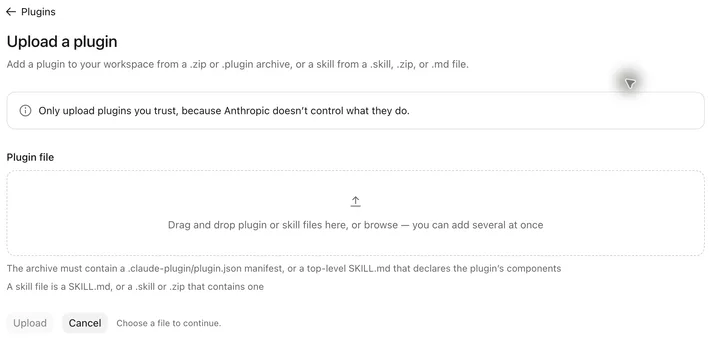 View full screenshot (new tab)
2. Pair your iPhone with OAuth
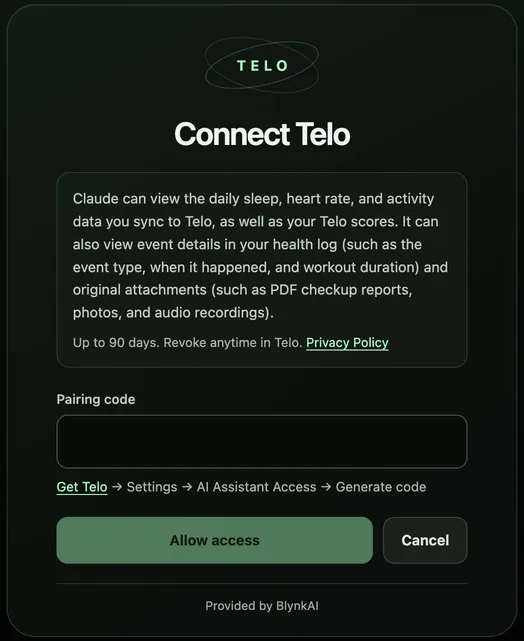
- On your iPhone, open Telo → Settings → AI Assistant Access and generate a pairing code.
- Enter the code on the Telo authorization page and approve access.
If your browser asks to reopen Claude Desktop after pairing, follow the prompt.
3. Ask a question
Open a chat in Claude Desktop and ask about your Telo data. If you don’t see a Telo tool call, check that the connector is enabled in this chat. See what has been verified across clients.

Use Telo to list my sleep duration and workouts for the last three completed days. Mark any dates with no record.
Paired but can’t find a record?
Check that the record appears in Telo Health on the date you asked about. Then open Settings → AI Assistant Access and check that the connection is active. If your pairing code expires before you enter it, generate a new one in Telo and retry on the authorization page.
What Apple Health data can the assistant access?
Access is read-only. It can include synced daily summaries, such as sleep duration and stages, HRV, resting heart rate, active energy, exercise time, and Telo scores. Health Log access can include event times, categories, structured metrics, and links to available source attachments. Review the scope shown on the Telo authorization screen before approving.
How do I revoke access?
In Telo, open Settings → AI Assistant Access, select the connection, and revoke it. That connection can no longer read data from Telo. To manage conversations already shared with an assistant, use that platform’s controls.
Once you’re connected, try these Apple Health example questions.